Tuesday, February 17, 2015

Download CAML Query Designer

Recently I had some free time and implemented an utility for generating CAML query. It's implemented through Technovert with the great UX design ideas. This tool is not only just for generating the CAML Query but also to extract as much of information  related to a list or library which will help developers and administrators. This tool is using the technology stack:
  • WPF (Windows Presentation Foundation)
  • .NET Framework 4.5
  • SharePoint Managed Client Object Model.

This utility has the below features available:
  1. Supports SharePoint 2010/2013/Online. 
  2. Site Manager which remembers your settings and sites information, so you can use them for later time. (All the information is encrypted.). You can save as many connections as you want.
  3. This utility shows the all lists and libraries from the site you requested and also it will show all the subsites and lists in the site as well.
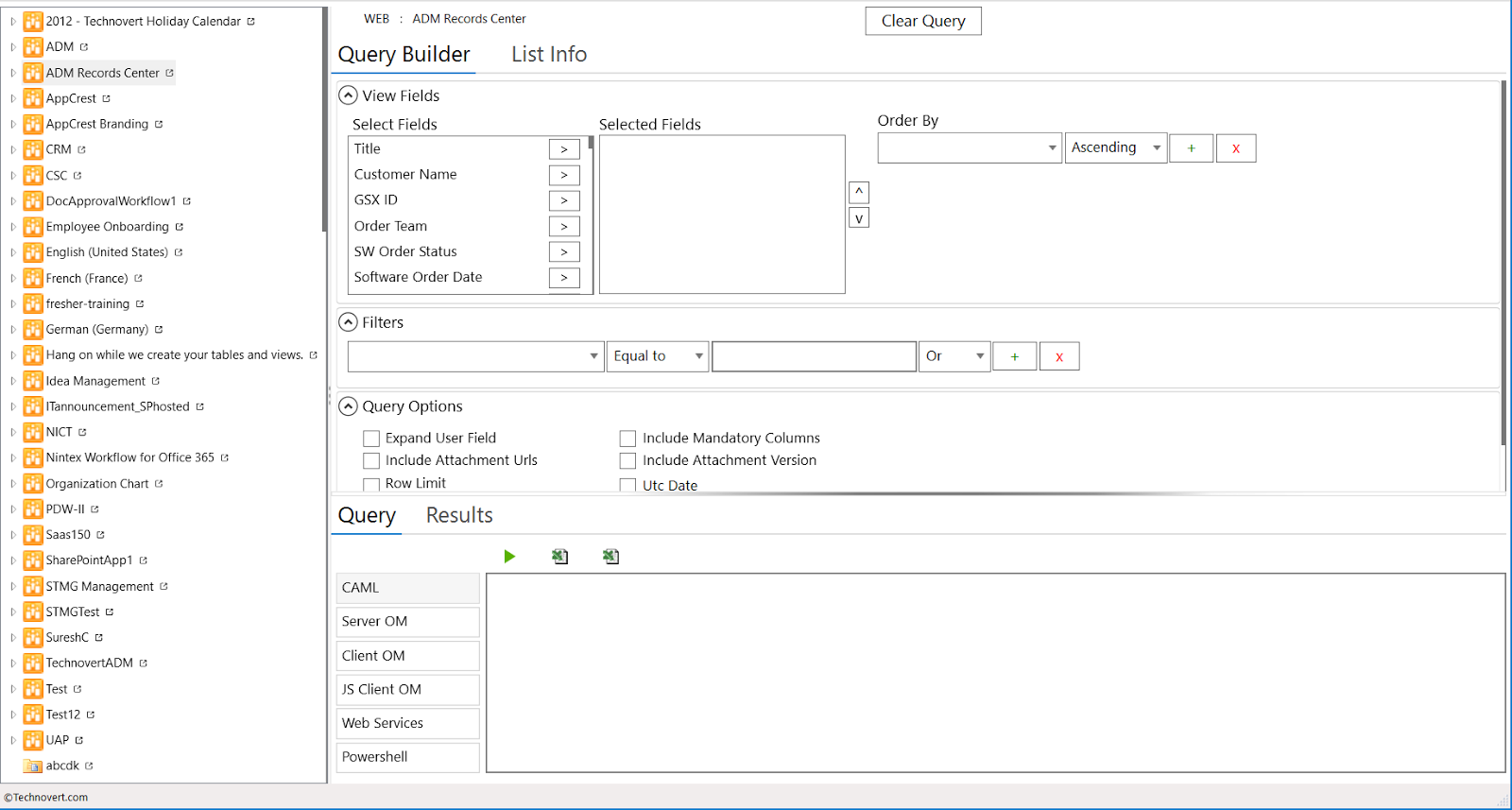
  4. Better UX design which will help users to better use the tool. Below are the modules available to configure and generate your query. 
    1. View Fields: To select what fields to show in the query results. 
    2. Order By: used for sorting the results. 
    3. Filters: To add where clauses. (Right now grouping support not available.)
    4. Query Options: To select any additional options for generating CAML Query.
  5. This tool also gives the below advantages other than simply generating query. 
    1. Gives CAML Query output
    2. Generates Server Side Object Model Code. So, you can simply hook the piece of code  directly. 
    3. Generates Managed Client Object Model Code. 
    4. Generates Java script (ECMAScript) Client Object Model Code. 
    5. Generates Webservices Code.
    6. Generates Powershell script code. 
  6. Export the query to text file. So, you can share it with others. 
  7. Export all languages generated syntax to text file. 
  8. Execute and see the results. So, you make sure your query is correct. 
  9. Export the results to Excel. 
  10. Along with the query generation, this tool also has the support of showing all list information. 
    1. List Metadata
    2. Export the list schema to xml file. 
    3. All fields in the list. 
    4. Export fields to the Excel. 
    5. Show all Content Types attached to the list. 
    6. Export content types to Excel. 
    7. See all workflows on the list. 
    8. Export workflow details to Excel. 
    9. See all Event Receivers on the list. 
    10. Export all event receiver details to Excel. 
  11. Log viewer is also available. So, users can see if anything is wrong in using the tool. 
  12. You can open the list, site, library or any other entity directly from tool. You will see "open in window" icon everywhere next to them.
Please let me know the feedback by going to Technovert / Contact Us or you can leave comments here.
Download CAML Query

Saturday, February 14, 2015

Download Office 2016 Technical Preview

So far Windows 10 is looking good and I am really enjoying with new UI and options available around. Especially the way Cortana implemented, the neat look of the new icons and text rendering is impressive. I recommend you to download the technical preview and use it. I didn't find any major issues so far in the past 2 weeks.

Now, it's the time to use Office 2016. After seen some videos and read some articles wanted to try new Office. But, the invitation link is not working currently. Even if you join in Microsoft Insider program or you registered in Microsoft Connect, you can't be able to download the new version as it is down currently.

If you want to try out the new office, the only way I found is through Windows 10 OS. The OS has the "Store (Beta)" app. Through this app you can download the new office for MS Word, Paint and Excel.

  1. Go to Store (Beta) in your Windows 10 OS. 
  2. Search for "Office Preview" and then download the 3 preview apps available. 
Enjoy the new office. it looks cool. 


Monday, March 10, 2014

Updates to SharePoint Online Limits

This must be one of the most loving post for SharePoint Audience. The updates to the limits of SharePoint Online are unbelievable and it's the great thinking by SharePoint Online team.

With the new announcement a site collection can grow up to 1TB in size. This will be a huge benefit to the tenants who has huge data and would like to go cloud with publishing/enterprise/social features.

Get all details here:
http://office.microsoft.com/en-us/office365-sharepoint-online-enterprise-help/sharepoint-online-software-boundaries-and-limits-HA102694293.aspx

Monday, February 10, 2014

Microsoft stop supporting Windows XP on April 8, 2014

If your organization still having PC's running Windows XP then it's the call to you that Microsoft stops supporting Windows XP on April 8, 2014. Which means you won't receive any updates or support from Microsoft after April 8th, 2014.

* Up-gradation process may involve changing of your current hardware (as old hardware may not support running Windows 8). 

Tuesday, December 24, 2013

Finding SharePoint page is in edit mode using javascript

Recently in my project I got a requirement where I have to switch views of web parts based on the page mode (browsing mode and edit mode). When user is in edit mode I have to show some styles which will give option to user to add the data easily, but when user save the changes and publish the page, the styles will go away and they see normal page. So, I have to identify whether the page is in Edit mode or Browse mode in javascript.

I have a set of styles already written and based on the page mode I need to add those styles to some divisions on html. To find the edit mode of the page using javascript we have to use below logic:
var IsPageInEditMode = 
document.forms[MSOWebPartPageFormName].MSOLayout_InDesignMode.value; 
if (IsPageInEditMode == "1") { 
    alert("web part page is in edit mode."); 
} 
else { 
    alert("web part page is in browse mode."); 
}
But, this is not it all. To make it a common solution we must do more. :) The above logic works only for the Publishing pages. Which means if you have team pages (/sitepages/) or wiki pages then the above solution fails to return the correct value. For this, we should use below logic.
var IsPageInEditMode = document.forms[MSOWebPartPageFormName]._wikiPageMode.value; 
if (IsPageInEditMode == "Edit") { 
   alert("wiki page is in edit mode"); 
} 
else { 
   alert("wiki page is not in edit mode"); 
}
These SharePoint hidden variables are handy most of the times. Let's take a closer look at how we did it.
SharePoint uses the form variable for all its operations. This is a global variable added by SharePoint Framework to javascript. See the below image:

If you see the above image, there are many variables available for you in javascript. The first one is what we have used to get the form name. And the same way, we have many hidden variables available in javascript. These all can be visible by doing "View Source" on your browser. :)


From one of my friend, I got to know that in SharePoint 2010, 2013 we have a method available to get the Page State.
var IsPageInEditMode = SP.Ribbon.PageState.Handlers.isInEditMode();
That's all for now. Enjoy the new findings. I know it's old finding but learning is always fun!

Importing Excel Data to SharePoint

Recently for my company I have implemented a nice tool for importing data to SharePoint. The initial implementation started with Importing Excel Data to SharePoint List. Few years back me and my colleague implemented the same solution for 32 and 64 bit SharPoint 2007 servers. But, this new tool is targeted for SharePoint 2010, SharePoint 2013 and SharePoint Online. For more details visit the company blog. And also take a look at the codeplex project.

Its officially moved to my company utilities page. Please get it here.

Wednesday, September 11, 2013

API Tutorial for Office

I am so excited about the Microsoft new announcements and their implementation approaches going forward. Just got to know today the great implementation "Javascript API for Office". Isn't it exciting to read? It's the new way to work with Office online. The tutorial app will provide us 6 examples on how we can use the Javascript API for Office. You can use "Napa for Office 365 Development Tool" to open the app files to write code.

To run the tutorial online you must be using IE 9, Safari 5.0.6, Firefox 5, Chrome 13 or later versions of these browsers.

API Tutorial for Office
http://msdn.microsoft.com/en-us/office/apps/fp161510
http://blogs.msdn.com/b/officeapps/archive/2013/09/11/learn-how-to-write-apps-for-office-code-interactively-with-the-api-tutorial-for-office.aspx

Monday, September 9, 2013

Download Visual Studio 2013 RC and Windows 8.1 RTM

It's great day to start with new releases. If you didn't try VS 2013 yet then it's the right time to try it out as it improves the productivity by >30%. Windows 8.1 RTM is ready to download via MSDN or Technet subscriptions.

Read more complete article at: http://blogs.msdn.com/b/somasegar/archive/2013/09/09/announcing-the-visual-studio-2013-release-candidate.aspx
