Showing posts with label SharePoint 2007. Show all posts

Thursday, September 6, 2012

One or more field types are not installed properly. Go to List settings page to delete these fields. Error after migrating the SharePoint site from 2007 to 2010

Recently we have migrated a SharePoint 2007 site [publishing site] to SharePoint 2010. The process was successful but while we are opening any ASPX in the pages library or Manage Content and Structure page it is giving below error.

"One or more field types are not installed properly. Go to List settings page to delete these fields."

Usually this error comes when we are trying to access a column which is not there in a list or library. But, in this scenario it is special and took lot of time to figure out what is the issue.

Tools used to find out the issue are:

  • SharePoint designer
  • SharePoint Manager
After looked deeply into all the lists/libraries and the pages, we found there are some hidden lists in the site. I first tried to deactivate and activate the Publishing feature in the site collection level, it was successful. And then trying to activate the publishing feature at root web level, it was failed. So, I clearly understood there is something wrong with publishing feature as everything else are working fine. 

After did some research and googled for the sometime, found that the list named "Relationships List" is causing the error. It will not migrate successfully most of the times when we migrate from 2007 to 2010.  Below is the solution for fixing it. 
  • Deactivate the "SharePoint Server Publishing Infrastructure" feature in SP 2010 server at site collection level.
  • Type http://sharepointserverurl/Relationships%20List/AllItems.aspx in the browser.
  • From List settings, delete this list.
  • Activate the publishing feature at site collection level.
If needed, you can activate the publishing feature at root web level as well. Once you followed the above steps the site should work without any issues as the "relationships list" is now created right. :)

Wednesday, February 15, 2012

SharePoint Server 2007 - All versions

MOSS 2007
ReleaseVersionKBDownload
RTM12.0.4518.1016
Public DST12.0.6034.5000
SP112.0.6219.1000
Post SP1 (Jan) (Global)12.0.6300.5000
Post SP1 (Jan) (Global)12.0.6301.5000
Post SP1 (Feb) (Global)12.0.6303.5000
Post SP1 (Feb) (Global)12.0.6304.5000
Post SP1 (Mar) (Global)12.0.6306.5000
Post SP1 (Mar) (Global)12.0.6307.5000
Post SP1 (Mar) (Global)12.0.6308.5000
Post SP1 (May) (Global)12.0.6314.5000
Post SP1 (May) (Global)12.0.6315.5000
Post SP1 (May) (Global)12.0.6316.5000
Post SP1 (June) (Global)12.0.6317.5000
Infra Update (Global)12.0.6318.5000
Post SP1 (July) (Global)12.0.6324.5000
Post SP1 (July)12.0.6324.5000
Exel Security fix (Global)12.0.6317.5000
Aug CU (Global)12.0.6327.5000
Oct CU12.0.6331.5000
Dec COD (Global)12.0.6335.5000
Dec CU12.0.6335.5000
Dec COD12.0.6336.5001
Dec COD12.0.6336.5002
Feb 2009 CU12.0.6341.5001
SP212.0.6421.1000
April 2009 CU12.0.6504.5000
Jun 2009 CU12.0.6510.5003
Aug 2009 CU12.0.6514.5002
Oct 2009 CU12.0.6520.5000
Dec 2009 CU12.0.6524.5001
Feb 2010 CU12.0.6529.5000
April 2010 CU12.0.6535.5002
Jun 2010 CU12.0.6539.5000
Aug 2010 CU12.0.6545.5001
Oct 2010 CU12.0.6548.5000
Dec 2010 CU12.0.6550.5000
Feb 2011 CU12.0.6554.5000
April 2011 CU12.0.6557.5000
June 2011 CU12.0.6562.5000
August 2011 CU12.0.6565.5000
SP312.0.6608.1000
October 2011 CU12.0.6654.5002
December 2011 CU12.0.6656.5001

Wednesday, November 4, 2009

Does SharePoint designer 2010 support SharePoint 2007 and earlier?

SharePoint designer 2010 is not supporting backward compatibility. Means won't support Windows SharePoint Services v3 or earlier versions. I think you got what I am going to say now… Yes, SharePoint designer 2010 only works for SharePoint 2010. I think this news is hard for you, but this will be good for us only. Because in this way, they will build very good version of product without any mess-up. By taking this as the advantage they will only concentrate on the SharePoint 2010 support and will make really a very good product. So, how to get the support for SharePoint 2007 sites? Is there no other way to edit the earlier version sites? I know this is the question in your mind now.

Don't fear. There is an option. By thinking these questions in mind, the SharePoint designer team is developing the software/product to install the designer side by side. So, you can install the SharePoint designer side by side the both versions on the same machine without having any issues. So, this will solve all the problems. If any site which is of earlier than SharePoint 2010 you can use SharePoint Designer 2007, for SharePoint 2010 you can use SharePoint designer 2010.

Are there any requirements for side by side installation? Yes, it has some requirements. You know a big change from previous version to current version is bit [32 bit vs 64 bit]. As SharePoint Designer 2007 is came only on 32-bit[x86], you will only install SharePoint Designer 2010[X86] 32 bit version side by side on a server. And if you install SharePoint Designer 64-bit on a server which has installed 32-bit MS Office, then it won’t give good result. So, Don’t install mismatched version of any. Please install everything of same version.

Wednesday, July 8, 2009

Microsoft.SharePoint.Upgrade.SPUpgradeException

After I installed the MOSS SP2 update yesterday, when I hit refresh on my custom ASPX page, I got the below exception.

Microsoft.SharePoint.Upgrade.SPUpgradeException: An error has occurred on the server.http://go.microsoft.com/fwlink?LinkID=96177.

I was little bit surprised and frustrated to find out the cause why it was showing. I ran the configuration wizard and checked the database schema version. Everything was fine. After research and thought about it for some time, started trail and error methods to find out the issue by going to event viewer and logs etc…

Finally found the problem. That was Because of not restarting the server after installing the SP2 on the server. After I restarted the server, everything worked fine and i am very happy by seeing the page on the browser.

Is this helpful?

Tuesday, July 7, 2009

Install language pack in SharePoint 2007

I have MOSS server running from long time and it has plenty of sites running. Now I got a new requirement from one of my clients that their site should support different languages. This bothered me somewhat because of this article. http://technet.microsoft.com/en-us/library/cc262108.aspx

Which explains as below

  • Install the necessary language files on the front-end Web servers.

  • Install Office SharePoint Server 2007 on each front-end Web server.

  • Run the SharePoint Products and Technologies Configuration Wizard on each front-end Web server.

If that is the case, I need to uninstall MOSS on the server and need to install all language files before installing MOSS. But if that happens I will loose my server settings and the whole environment. It’s impossible to get the same development settings if I uninstall it. Then I posted about this, in MSDN forums and Mike Walsh all time favorite to me, gave me very fast reply and his solution worked great!!!

You can take a look at it here.

http://social.msdn.microsoft.com/Forums/en-US/sharepointadmin/thread/1963f252-056e-43ec-8480-d99a4f8d5388

Hope this will help you too!!!

Friday, June 26, 2009

Microsoft SharePoint server 2007 Service Pack 2 update

We know the expiration issue of SharePoint server after install of Service pack 2. Now Microsoft has been working to fix it from past 2 months and finally they released an update and it is ready for download. You can install it on both the Server with SP1 or the Server with SP2 installed. You can see more details here.

So, what are you waiting for? Just download it and install on the server.

Wednesday, June 10, 2009

How to see actual exceptions or errors in SharePoint instead of Unknown errors message

When I was new to SharePoint programming, I faced plenty of problems to find out what errors or exceptions coming on a SharePoint web page. Because as of my knowledge those days, I thought like there is only one place where we can find the details of the exception or error coming and that is nothing but logs. [Which usually located in 12 hive.] But after got some experience with SharePoint slowly learning new things and found a way to see the exception directly on the screen[browser] instead of going to logs and check there.

When an exception comes in SharePoint environment usually the page we see is Unknown error, nothing else. 

To see the actual exception details follow the steps below.

  • Go to the location where your SharePoint application is present in the file system. It is usually at the location inetpub/wss/virtual directories/[port number].
  • Find the web.config file.
  • Take a backup of it.
  • Open the file in some nice editor like Visual studio and find the tag <SafeMode
  • This is the first child tag under <SharePoint>
  • You can see the tag syntax something similar to this.

     <SafeMode MaxControls="200" CallStack="false" DirectFileDependencies="10" …….

  • One of the attributes for <SafeMode called CallStack, which holds the boolean value which tells to SharePoint framework whether to show the actual exception details or not.
  • Set this value to true in-order to view the actual exception details on screen[browser].
  • Set the CustomErrors section to Off to view complete details as shown below.
  • <customErrors mode="Off" />
  • IISRESET is not compulsory. If you do then that will be good.

Hope this will help to you to make fast development and no such big pains to look into all the log files for errors.

Note: Please use this option only on the development environment to make development fast. On production servers and QA environment, don't make the above changes to the file. If you do this, all your end users will see the actual exception or error details, which is not good.

Tuesday, June 9, 2009

ASP.NET FileUpload and File.Open() method problems

In this post I tried to explain the problems using File.Open() method when we use FileUpload control on ASPX form.

Today at my work, I faced plenty of problems with ASP FileUpload control in SharePoint. I was creating a custom form according to a client requirement. And whenever I tried to upload a file to the document library it was failing always.
The exception I am getting was: Could not find a part of the path "file upload path."

I was frustrated trying different things for 20-30 minutes and finally thought of checking the code again for a clue. Below are the details from my analysis.
I used the following code to get the uploaded file as a stream and save it to a SharePoint document library.

using (FileStream fs = File.Open(fileName, FileMode.Open))
{
    //Sharepoint programming - Adding document to a document library.
SPFile destfile = folder.Files.Add(fileName.Substring(fileName.LastIndexOf("\\") + 1), fs, true);
    //your logic here
}

fileName is a variable passed to File.Open() method that holds the file system path of the file from the file upload control.
The above code was trying to find the file in the given path on the server. If you correctly read the above sentence, it was looking for the file on the server with the given path.

Take this scenario. I was working on machine1 which is a development environment (my MOSS server) and in which my application is also running. I was testing the application from the other machine named machine2 (client). When I try to upload a document from machine2 from the path say c:\documents\abc.docx, The server code [C#] File.Open() was looking for that same path c:\documents\abc.docx on the server, i.e. on machine1. See, there was the problem. The code was trying to find the file at the path c:\documents\abc.docx on the machine1, which doesn’t exist. This is the problem with the File.Open() method in file upload control. So never use this in the code implementation in c# when you are dealing with the FileUpload.

Here is a Solution:
using(Stream fs = fileUpload.PostedFile.InputStream)
{
    //Sharepoint programming - Adding document to a document library.
SPFile destfile = folder.Files.Add(fileName.Substring(fileName.LastIndexOf("\\") + 1), fs, true);
    //your logic here
}

If you observe, I am, here taking the stream from the fileupload control by using fileUpload.PostedFile.InputStream instead of passing the file name to File.Open().

Be careful while using the streams and know the difference between the File.Open() FileStream and the FileUpload Stream.
Hope this helps you to understand the both objects how to use and where to use.

Friday, June 5, 2009

Exception: Only String, int, and DateTime data types can be used as the value in Properties while adding list item in document library.

This is the exception I got when I try to add a list item through c# in a SharePoint document library.

Details:

In my previous post, I explained the logic for adding list item to a document library through c# code. This works well if the list/library columns are of type int, string and date time. If I add a column of type Currency then the code will break and it won't add the list item to the library at all. Because the function list.RootFolder.Files.Add() will not accept the properties other than the 3 types mentioned, through HashTable. This is the problem with the function. To avoid that below is the code i used and this problem went away.

Solution:

SPFile destfile = list.RootFolder.Files.Add(
fileName.Substring(fileName.LastIndexOf("\\") + 1), fs, true);
if (destfile.Item == null)
lblMsg.Text = "Error in adding file";
else
{
SPListItem listItem = destfile.Item;

//Logic to set list item columns like
//listItem["Title"] = "Document Title";
//listItem["CurrencyField"] = 234.908;
//listItem["NumberField"] = 12345.678;

listItem["ContentType"] = "Document"; //Default Content type for Document libraries
listItem.Update();
destfile.Update();
}

If you observe the code difference between my previous post and this post is, I am not passing the HashTable object to list.RootFolder.Files.Add() method. Because there the problem was. [Exception was coming from it.]

After I am adding the document then trying to set the column names of the list item by reading the same list item object which is from the line

SPListItem listItem = destfile.Item;

The below line to this line of code is for setting the content type of the document library. Take care of this one that, a document library can inherit from more than one content types. So you should mention the content type for better results.

Finally, updating the list item and updating the file to reflect the changes to the document library list items. Please feel free to post your ideas, comments and question here.

Windows server 2008 and SharePoint server

This is the best article that covers complete information about the requirements for installing SharePoint server on Windows Server 2008. This is important article because this is the starting point for the people who like SharePoint 2010. Because SharePoint 2010 install only on Windows Server 2008.

http://blogs.msdn.com/sharepoint/archive/2008/01/16/windows-server-2008-and-sharepoint-resources.aspx

Creating RESTful Mashups using SPD 2007

Fantastic article on creating Mashups in SharePoint. Complete description step to step with images. Thanks for the great stuff. You can see the article here.

http://blogs.msdn.com/sharepointdesigner/archive/2008/12/05/creating-restful-mashups-using-spd-2007-part-1.aspx

Wednesday, June 3, 2009

Check out causing the item update event receivers call twice in SharePoint

Event receivers will help us to write events to add custom logic to perform operations while adding/updating/deleting items in a list/libraries in SharePoint. We can register the receivers to all lists/libraries or to a particular list or a library. Here in this post I am explaining the special case of the item update event receivers.

This is regarding the calling of these events 2 times by SharePoint framework when check out action done on a document library item. When you enable the option Require Check Out in a document library and when you choose option to checkout a document in a document library then it will call the item update events twice [If you write any update event receivers on the list then only]. So take care to avoid the unwanted call, otherwise it will do some unwanted actions. Because of it there may be chances of performance issue. Below are the details of solving the issue.

If the vti_sourcecontrolcheckedoutby property exits in the "BeforeProperties" property but not in the "AfterProperties" property, the event was caused by checking in a document. So by using this logic we will put the logic in specific block.

if (properties.AfterProperties["vti_sourcecontrolcheckedoutby"] == null
&& properties.BeforeProperties["vti_sourcecontrolcheckedoutby"] != null)
{
    //This is when the update event is triggered by check-in.
}
else
{
    //This is triggered by events other than check-in action.
}

For more details:

http://support.microsoft.com/kb/939307

Saturday, May 30, 2009

Adding a list item to Document library through c# in SharePoint 2007

As we all know the required filed for document library is not Title. We should be upload a file for the document library list item. This is the required field by default. You can add columns and make them required as well. So, when through program we want to add a list item to the document library then we need to collect the uploaded file and the meta data i.e. the list of columns data. So on the custom form of the document library we need to add ASP.NET controls for file upload and for all the other columns. Here I thought of giving C# code we need to use to create a list item in SharePoint document library. I think this is the only efficient way of adding a list item to document library. If not please post your ideas.

string fileName = fileUpload.PostedFile.FileName;
        using (SPSite site = new SPSite("http://sharepointserver"))
        {
            using (SPWeb web = site.OpenWeb("/"))
            {
                try
                {
                    web.AllowUnsafeUpdates = true;
                    using (FileStream fs = File.Open(fileName, FileMode.Open))
                    {
                        SPList list = web.Lists["Documents"];
                        Hashtable metaData = new Hashtable();
                        for (int i = 0; i < keys.Count; i++)
                        {
                            metaData.Add(keys[i], values[i]);
                        }
                        SPFile destfile = list.RootFolder.Files.Add(fileName.Substring(fileName.LastIndexOf("\\") + 1),
                            fs, metaData, true);
                        if (destfile == null)
                            lit.Text = "Error in adding file";
                    }
                }
                catch
                { }
                finally
                {
                    web.AllowUnsafeUpdates = false;
                }
            }
        }

NOTE: fileUpload is the control I am using in my code to get the file from the custom form. And the key and value fields are the column label and it’s value respectively. If you know the list column names then remove for loop and hard code the label, value while adding them to the metadata. Example like below code,

metaData.Add("Title", "DemoDocument"); metaData.Add("Version", "1.0"); metaData.Add("Author", "Praveen"); metaData.Add("ContentType", "Document");

NOTE: There is a problem in adding the list item through the code if your list columns are not inheriting from the data types string, int and datetime. You will get an exception. So follow this post to fix it.

Please post your ideas on it.

Show data from list by using web services through SharePoint designer

When working on big SharePoint projects we will get really good requirements and most of them are the challenging. In some cases we need to show the data by pulling from one list in a site to another site. For example, on “Site A” home page we want to show the data from another site or sub site. Then we need to use the web services and call the list and get the items. This is what this blog post is completely about.

How is it useful?

It is useful because as far as i know we have two ways of doing this without coding.

1. By using IFrames on the web pages. Create a content editor web part on the page of the site where you want to show the list content and add a IFrame and point it to the page where list data is present in another web site. So it is just doing nothing, just loading that page as it is. But it’s not a right way of implementing it. Because if authentication is different then you need to login to the site 2 times. One for the main site and another for the IFrame. Another problem is we can’t use IFrames on the web pages for security and performance issues. So it’s not a good way of doing. Then is there any other way?

2. Yes, We have a solution for this and it’s the better way of implementing it. Call a web services by connecting to the web services of the site we want to get the data, pass credentials and then select the list or library you want. Add a web part to the page and give the list we pulled from web service to the web part. That’s it. It is the easy and efficient way. I am explaining this a little bit detail below.

  • Create a SharePoint web part page for showing content by using web services.
  • Open the page in SharePoint designer and detach it from page layout.
  • Now, we need to add a web part for showing the data. We have a very comfortable and most usable web part in SharePoint nothing but Data View web part. Add this to the page.
  • Now, web part is ready and need of data source. So we need to go for list where we have to pull the data. It can be in the current site, sub site or some other site.        SharePoint_XML_Web_Services
  • Go to Task pane menu item of SharePoint designer and select the Data Source Library. Now you are able to see the all the data sources exist in the current site only. For example, if you want to pull data from a list which is in subsite or some other site you can’t find the data source entry in the lists and libraries section. This is the time where we need to go for XML web services. See above figure for more details.
  • Now we need to add a new XML web service data source to our site. How difficult it will be? very simple, follow below.
  • Expand the node XML web services and you can find the link called “Connect to a web service”.
  • Now you are open up with a window where you can see the properties of the web service data source.XML_web_services_Data_Source_PorpsNow we need to set the properties for the data source. Move to the tag General. Fill the name, description and keywords. 
  • Move to tab source and fill the source description location. You can browse to the location of the site and add the which asmx file you want to add. Or if you know location you can manually enter the url. Usually the location is like this. http://sharepointserver/_vti_bin/lists.asmx?WSDL
  • Remember for example purpose, i given the lists.asmx file path, you can use any of available web service.
  • Before click on Connect now button, check the credentials. You have options for entering credentials, or use default/windows credentials or don’t ask for credentials etc. Set the credentials type and then say Connect now.

Login_DataSource

  • Now the command to configure. Our case, we want to show the data. So it should be the Select operation.
  • Select the port : ListsSoap [default one]
  • Select operation type : GetListItems
  • Now time to pass parameters to the data source. First thing is you need to select the listname parameter that from which list you need to get the data.You can pass parameters to the web service to filter the results too.  For example, if your list has the boolean column for IsUpdated. Then we want to show only the columns which are having IsUpdated=false, then you can set that here. DataSource_ParametersWe are done with configuring and setting the data source properties.
  • We have data source ready and we need to use it to link to the data view web part.
  • If you set everything correct, then you can see the entry under the XML web service section.
  • Click on the data source and choose Show data from the menu.
  • Now, it will open Data Source Details task pane that pull all the column information from the list that you connected to as shown below.

DataSource_DetailsSelect the  list of columns that you want to show on the page. [You can select multiple columns by pressing the control key.]

  • Now click on the option “Insert selected fields as” Multiple Item view. It will add all the selected columns to the Dataview web part.
  • Save the page and view it in browser.

How nice it is, and how simple it is?

Really thanks to SharePoint designer and Data view web part that makes our work easier.

Please post comments if you have any questions.

Friday, May 29, 2009

Deleting the list items at a time from list using batch command in SharePoint 2007

When we are working with SharePoint, especially when programming we can discover plenty of things. Because SharePoint is a very big system and it is pretty much good for the developers and administrators that they can discover more and explore more. Its a lovely product and I really love it from Microsoft. From my experience in SharePoint i thought of placing all the SharePoint stuff in my blog. So now we are going to discuss about the performance and operations we need to perform in coding when dealing with SharePoint objects.
When we do SharePoint coding we need to think a minute about the efficiency and performance of the code . For example, if you take a person object, it has some properties around 10-15 and if you don’t dispose it from memory then we don’t get serious problems. But where as we dealing with SharePoint objects like SPSite and SPWeb etc, these are very big and occupies lot of memory than objects what we use every day in C#. So, don’t forget to use Using keyword for them so that they will be disposed and removed from memory when it’s scope is over automatically.
Another performance related is performing common operation to all list items in a list in SharePoint. Usually we will write a foreach statement to loop through all the list items in a list and perform operation. i.e. add, edit or delete. When we need to update all the list items and columns, data varies dynamically then  we need to write a update command inside the foreach statement. But when we know that we are updating the same columns with same data for all items then we shouldn’t follow the code by writing update statement in foreach statement. Because it will be very costly and time taking. It will use lot of resources multiple times. So for this, Microsoft SharePoint team already integrated beautiful feature in SharePoint system. i.e. called Batch programming for doing operations on list items. This is the most efficient way of deleting or updating in a single list.
Below is the code i use to delete all the list items in a SharePoint list.
private void DeleteAllItemsUsingBatch()
    {
        using (SPSite site = new SPSite("http://mySharePointServer"))
        {
            SPWeb web = site.OpenWeb("/");
            SPList list = web.Lists["Links"];
            StringBuilder sb = new StringBuilder();
            sb.Append("");
            string batchCommand = "<method><setlist scope=\"Request\">" + list.ID + "</setlist><setvar name=\"ID\">{0}</setvar><setvar name=\"Cmd\">DELETE</setvar></method>";
            foreach (SPListItem item in list.Items)
            {
                sb.Append(string.Format(batchCommand, item.ID.ToString()));
            }
            sb.Append("");
            web.AllowUnsafeUpdates = true;
            site.RootWeb.ProcessBatchData(sb.ToString());
            web.AllowUnsafeUpdates = false;
            web.Close();
        }
    }
Below is the code for deleting all library items in a document library. Remember, the only difference is for document libraries we have files as the primary fields. So, we should specify the file name along with the other parameters. So, find below code.
private static void DeleteAllItemsUsingBatch()
        {
            using (SPSite site = new SPSite("http://mysharepointserver"))
            {
                SPWeb web = site.OpenWeb("/");
                SPList list = web.Lists["Documents"];
                StringBuilder sb = new StringBuilder();
                sb.Append("");
                string batchCommand = "<method><setlist scope=\"Request\">" + list.ID + "</setlist><setvar name=\"ID\">{0}</setvar><setvar name=\"Cmd\">DELETE</setvar><setvar name=\"owsfileref\">{1}</setvar></method>";
                foreach (SPListItem item in list.Items)
                {
                    sb.AppendFormat(batchCommand, item.ID.ToString(), item.File.ServerRelativeUrl);
                }
                sb.Append("");

                web.AllowUnsafeUpdates = true;
                site.RootWeb.ProcessBatchData(sb.ToString());
                web.AllowUnsafeUpdates = false;
                web.Close();
            }
        }
Explore more and know more. Happy Coding!!!

Thursday, May 28, 2009

How to change the server name which has SharePoint 2007 installed?

Introduction:

Everyone is using and liking SharePoint these days because it is matching a lot of requirements we have. This is a cool and nice product released from Microsoft and we need to know about it and complete administration. I am working from long time on SharePoint and few months back i was trying to change the system name of the server in which SharePoint was installed, i learnt lot of things from it. But before discussing about it, i want to put something about what are the situations for renaming the server?

  • We are developers and will work on ASP.NET, SharePoint, Silver light etc…. SharePoint itself is a very big system and if you install directly the product on the server means development environment then SharePoint installs some services. If you want to work on ASP.NET application tomorrow, then all SharePoint services will run by default. So whenever we don’t want SharePoint to be running on the server then we manually go to the services and stop them. Its not a good way of doing that. So, what i propose here is to create a VHD which has the SharePoint, Sql Server and related software needed for SharePoint. by providing some extra memory to your system i.e RAM around 2-3GB, it will run fast. When SharePoint is needed then only we will run the VHD otherwise not.  So, in our office we have plenty of SharePoint developers and everyone will do the same creating VHD and install SharePoint. But  it’s a very time consuming and long process. Installing will take plenty of time. So, we will create a single VHD and copy it on some share location. From there all devs, admin, team will get the VHD and work on it.

So, till now did you find any problems? no, it was a simple process. When will we get the problem? if we want to add the VHD to network. Now the problem starts…. We have a very big task that we need to add the server to domain and everyone will access the SharePoint server of each other. But we copied the VHD and installed on our system, so all VHD’s will have the same names. So we can’t add the servers to the domain because of having same names, network conflicts will come. So finally we need to perform operation to change the server name.

Steps:

Here we go: by following the steps below we can complete this operation.

  •    Changing the Alternate Access Mappings:
  1. How to: Browse to SharePoint central administration, operations tab from the top navigation and under the section Global Configuration, select Alternate Access Mappings.
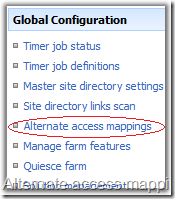
          Alternate_Access_Mappings

  1. Click on the Alternate access mappings and here select the mapping collection to select all as shown in below figure.

          Show_All_Sites

  1. Now, you can see all the mappings[urls] for the existing sites in SharePoint system. This is where we need to change the urls of the sites which points to the new urls. Click on the “Edit public urls” link on the top sub nav menu on the page. Here select the site from mapping collection on the right side one by one and map their urls to new server name as described below. For example, if your old server name is oldMOSSServer then the urls would be like this.
  2. http://oldMOSSServer/, http://oldMOSSServer:8080/, http://oldMOSSServer:4534 etc…..
  3. And if new server name is newMOSSServer then the url’s we need to changed to are as follows…
  4. http://newMOSSServer/, http://newMOSSServer:8080/, http://newMOSSServer:4534 etc…..

Note: Don’t change any port numbers in the above operation, just change the server name only.

  1. Repeat the above steps for all sites until everyone points to new server name.
  • Rename the SharePoint server by using STSADM tool
  1. Go to start –> run and type “cmd” to open the command prompt.
  2. Move to the path where STSADM.exe file is resides. Usually it is in 12hive\Bin folder.
  3. Command we need to run is renameserver. Syantax is:

     stsadm -o renameserver -newservername "newservername" -oldservername "oldservername"

  1. Change the strings highlighted in red to the new server name and old server name respectively and run the command. Remember by performing this operation means we changed the server name only within the SharePoint system but not on the server. This will only replaces the SharePoint system entries old server name with new name in SharePoint databases. Because in SharePoint everything will store in database.
  • Rename the original system name
  1. This is the simple operation generally all of us know. Go to Start button, right click on the Computer option and select Properties.
  2. Click on the change button type the new name for the server and [add it to domain if it’s not already in] and save the changes.
  3. RESTART your server.
  • Change the System and SharePoint credentials
  1. Change the credentials of the SharePoint server by running updatefarmcredentials command from STSADM tool.
  2. Check once all IIS application pools points to the old system name, if any change them and restart IIS.

That’s it!!!

Do you think we are completed with the process? NO, last and final step, TESTING: please open the central admin site of the SharePoint and check everything is working fine!!!

Remember, if any thing is broken or not working as expected, then you are always welcome to revert back the changes you did. If central admin site is not opening then you can do the below steps to revert back to initial state.

1. Rename your server name and [remove from domain and add it to WorkGroup if it was not in the domain before].

2. Rename the SharePoint server by running STSADM command to old server name.

3. Change the Alternate access mappings to revert back to old server name.

4. Restart the server and check the changes.

5. Change the credentials, RESTART IIS.

6. You should be back with all settings as before.

Please post your comments here if you have any questions  or issues.

Note: I was successfully performed all the steps as i said few months back, but forgot to change the Alternate access mappings. So what was the result, i always frustrated and felt bad that server change operation failed. After a long research and study we got it working. Hope this help others….