Thursday, October 4, 2012

Discontinued features in SharePoint 2013

Recently the MSDN article is published on discontinued and modified features in SharePoint 2013. This is very important to know as what all are discontinued compared to the previous version for future planning on upgrades or migrations. Below are the main features (according to me) among all the list Microsoft published.

Enterprise Content Management (ECM):
  • Barcode: Inserting barcode command is no more available in ribbon. Which means you cannot add the SharePoint generated barcode to Word documents.
  • Print labels: Ability to generate, embed a label containing the metadata about office files is no more supported.

Web content management improvements in SharePoint 2013

There are plenty of improvements in CMS compared to earlier versions of SharePoint. I have tried most of them and felt really easy to do things through browser.

Content Authoring Improvements:
  • Content authors can copy the text directly from the Word and paste to the Rich text fields, HTML fields, content editor web parts etc.
  • A new Video content type is added in SharePoint 2013. The uploading of a video and embed into the content is very easy. When you upload a video, the cms engine will automatically create the thumbnail for the video.
    Note: To generate automatic thumbnail generation for the video you uploaded the Desktop Experience Feature must be installed on the Front-end web server.
  • Content author can insert iFrame into the html fields on the page. Site collection administrators can customize the filed security settings by changing the default trusted external domains. So that users will not add all external domains which are not approved to the SharePoint sites. To control this go to Site Settings –> HTML Field Security.
  • Image Renditions: Now SharePoint 2013 supports Image Renditions. With this feature you can now enable the same image can render in different sizes in different places. You can set this through the Site Settings and Image Renditions option.
    Note: To use the image renditions you must enable the BLOB cache. To enable the BLOB cache please use this link “Enable BLOB Cache”.

Enable Continuous Crawl in SharePoint 2013

Enable continuous crawls is a crawl schedule option that is new in SharePoint 2013. It is available only for content sources that use the SharePoint sites content source type. A continuous crawl starts at set intervals. The default interval is 15 minutes, but you can set continuous crawls to occur at shorter intervals by using Windows PowerShell.

Prerequisites:
  • Create a Search Service Application
  • Create at least one content source of type "SharePoint Sites".

Wednesday, October 3, 2012

Site Policy in SharePoint 2013

SharePoint has lot of features and in any organization data grows day to day. At end of the day we see huge and huge data which is unusable or data grown beyond the estimation or something which is unmanageable. The sites will be created as we need but we don’t delete them when we don’t need it.

You can use site policies to help control site proliferation. In SharePoint 2013 we have couple of options to control the site policy. Below is the site policy with the available options.

Create_New_Site_Policy_thumb3

The MSDN article has very detailed description of the options mentioned here. These policies will help us to resolve the site management issues we face in large organizations.

Managed navigation using term store in SharePoint 2013

In SharePoint 2013 another feature we must like is the Friendly URL's. This is main feature in terms of SEO as well. If your site has the custom navigation needs to be implemented then one way is to implement from the site settings –> Navigation and add/edit/remove the links whatever you want to show up on the site. Another way with SharePoint 2013 is to manage the navigation via Term Store. You can create a term set and terms [Links] in it to show these terms as links on SharePoint site. For example, if you want to map your /pages/default.aspx with /home then it is possible with this new feature.

State Service in SharePoint 2013

I found that the State Service is missing in the SharePoint 2013 central administration site. I am not sure it is the problem with my installation.

I need to create a simple Approval workflow in my SharePoint 2013 site and for that first I need to check all services required to run workflows are configured correctly or not. As we all know Workflows should require the State Service to be run in the environment and the service should be associated with the web application where we are creating the workflows.

As there is no UI to start the service in SharePoint 2013, I have used the Powershell script to do this job.
$serviceApp = New-SPStateServiceApplication -Name "State Service"
New-SPStateServiceDatabase -Name "StateServiceDatabase" -ServiceApplication $serviceApp
New-SPStateServiceApplicationProxy -Name "State Service" -ServiceApplication $serviceApp -DefaultProxyGroup
The above 3 lines will create the state service application, state service database and the proxy to run the service. Now, the final step will be associating the service with the current web application. For this, go to
Central Administration -> Application Management -> Service Application Associations. Associate the service with your web application.

Here you go, all is set and enjoy with workflows...

Sunday, September 30, 2012

New SharePoint 2013 my site experience

SharePoint 2013 my site is looking cool and added many features. I am feeling like acquiring Yammer is a wise decision by Microsoft. The my profile page is looking damn good. Here are the nice features explained by SharePoint blog. Check them out!

Thursday, September 6, 2012

One or more field types are not installed properly. Go to List settings page to delete these fields. Error after migrating the SharePoint site from 2007 to 2010

Recently we have migrated a SharePoint 2007 site [publishing site] to SharePoint 2010. The process was successful but while we are opening any ASPX in the pages library or Manage Content and Structure page it is giving below error.

"One or more field types are not installed properly. Go to List settings page to delete these fields."

Usually this error comes when we are trying to access a column which is not there in a list or library. But, in this scenario it is special and took lot of time to figure out what is the issue.

Tools used to find out the issue are:

  • SharePoint designer
  • SharePoint Manager
After looked deeply into all the lists/libraries and the pages, we found there are some hidden lists in the site. I first tried to deactivate and activate the Publishing feature in the site collection level, it was successful. And then trying to activate the publishing feature at root web level, it was failed. So, I clearly understood there is something wrong with publishing feature as everything else are working fine. 

After did some research and googled for the sometime, found that the list named "Relationships List" is causing the error. It will not migrate successfully most of the times when we migrate from 2007 to 2010.  Below is the solution for fixing it. 
  • Deactivate the "SharePoint Server Publishing Infrastructure" feature in SP 2010 server at site collection level.
  • Type http://sharepointserverurl/Relationships%20List/AllItems.aspx in the browser.
  • From List settings, delete this list.
  • Activate the publishing feature at site collection level.
If needed, you can activate the publishing feature at root web level as well. Once you followed the above steps the site should work without any issues as the "relationships list" is now created right. :)

Saturday, August 25, 2012

SharePoint 2013 Developer Tools

As we are in preview version there are couple of tools which are there to help developers to quickly complete their job. The new implementations in SP 2013 like Apps for office and Apps for SharePoint 2013 etc. are also a WSP package. They are also having the same structure as the general WSP packages we developed for 2010 environment.

‘Napa’ tools for Office 365 Development:

If you are having your SharePoint 2013 environment on the cloud then your life is so easy to develop the Apps. “Napa” Office 365 Development Tools provides you a great way to build apps for Office or SharePoint directly out of a browser windows.

You might be thinking now, are there need of Visual Studio or any other tools needs to be installed on the server? No, its not required. All you need is just Office 365 account and the latest browsers. You might need Visual Studio in case if you want to debug your app or writing any complex  code etc..

image

You can find more details about it on MSDN here.

SharePoint Developer Tools for Visual Studio 2012:

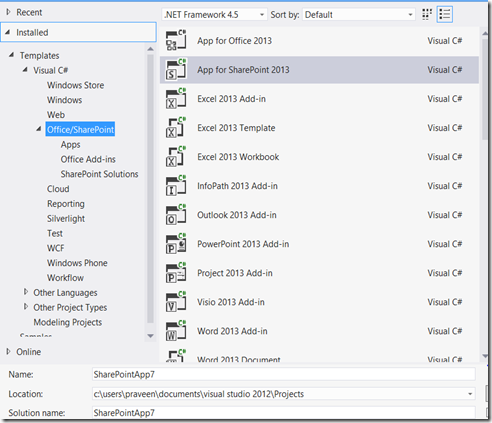
To develop SharePoint solutions in Visual Studio 2012 we must need these SharePoint developer tools. You can install them from here. Once you installed, you will see the new templates in Visual Studio for 2013 as shown.
image

SharePoint Designer 2013 and Visio 2013:

The SharePoint Designer is improved in many aspects. There are powerful implementations including ability to create .net 4.x workflows, new visual designer, loops [you can implement loop through items, wow.], calling web services, start workflow actions, packaging of workflows, dictionary [array] type variables etc.. So, IT guys can do much more than what they did compared to earlier versions without writing single line of code. It can address solutions to so many issues we had in earlier implementations with new SharePoint designer.

Visio 2013 also looks really cool and you can build powerful workflows and publish them with ease of development. Visio 2013 diagram now can connect to external data sources to use external data in the diagrams/workflows.